Screen recording has become an important part of everyday computer use. Students record lessons for later review, professionals create software tutorials, gamers capture gameplay, and businesses produce demonstrations for customers or employees. Instead of explaining everything with long written instructions, a video can show exactly what needs to be done.
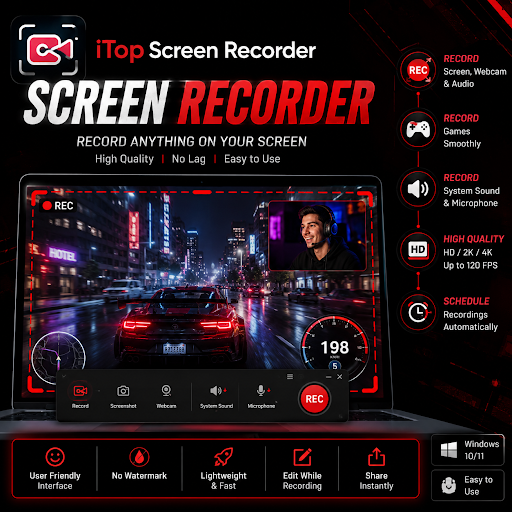
A reliable screen recorder makes this process easier by allowing users to capture their desktop activity and save it as a video. Among the available options, iTop Screen Recorder provides a range of features designed for recording different types of on-screen content, from presentations and tutorials to gameplay and online meetings.
What Is iTop Screen Recorder?
iTop Screen Recorder is a desktop recording application designed to capture activity displayed on a computer screen. It can be useful for both beginners and experienced users who need to create videos without complicated editing or recording workflows.
Instead of requiring specialized equipment, the software allows users to record directly from their computer. Depending on the recording requirements, users can capture a selected section of the display, a specific window, or the entire screen.
This flexibility makes it suitable for different situations. Someone creating a short tutorial may only need to record one application window, while a gamer might prefer to capture the complete display during gameplay.
Why Use a Screen Recorder?
A screen recorder can save time when visual instructions are more effective than written explanations. For example, explaining how to configure a software application may require several paragraphs, while a short recording can demonstrate the entire process in a few minutes.
Screen recording can also be useful for creating educational material. Teachers and students can record presentations, demonstrations, lectures, or study sessions. Employees can create training videos that colleagues can watch whenever they need help with a particular task.
For content creators, screen recording provides another way to produce tutorials, product demonstrations, reviews, and other digital content.
Flexible Recording Options
Different recording projects require different capture areas. Recording the entire desktop is not always necessary, especially when the goal is to demonstrate a particular application.
With iTop Screen Recorder, users can choose an appropriate recording area according to their project. Capturing a specific region can keep the final video focused and prevent unrelated desktop activity from appearing in the recording.
Full-screen recording, meanwhile, can be useful for presentations, gameplay, demonstrations, and activities that move between multiple windows.
Choosing the right recording area before starting can make the final video cleaner and easier for viewers to follow.
Capture Audio Alongside Video
Visual information is only one part of a useful recording. Many tutorials and demonstrations also require narration or system sounds.
A screen recording solution with audio capture can help users create more informative videos. For example, someone explaining how to use a software application can speak while demonstrating each step. Gamers can combine gameplay footage with commentary, while educators can provide explanations during a recorded presentation.
Before recording, users should check their microphone and audio settings. A quick test can help identify unwanted background noise, low volume, or microphone problems before an important recording session begins.
Recording Gameplay
Gaming content continues to be one of the most popular uses for screen recording software. Players may want to save memorable matches, create tutorials, analyze their performance, or share gameplay with friends.
A screen recorder designed for desktop use can provide a straightforward way to capture these sessions. However, recording can place additional demands on system resources, so users should select recording settings that match their computer’s capabilities.
For smoother results, it is useful to close unnecessary applications before recording. Gamers can also experiment with video quality and frame-rate settings to find a balance between recording quality and system performance.
Creating Software Tutorials
Software tutorials are another area where screen recording is particularly valuable. A tutorial can demonstrate menus, buttons, settings, and workflows that may be difficult to describe using text alone.
For example, a technology writer can record the installation and configuration of an application. A support team can demonstrate how to solve a common problem. A teacher can explain how to use an educational platform while recording the steps on screen.
When creating tutorials, it is helpful to move through each step at a comfortable pace. Clear narration and an uncluttered recording area can make the content much easier to understand.
Recording Presentations and Online Content
Presentations can sometimes be difficult to share with people who are unable to attend a live session. Recording a presentation creates a reusable version that viewers can watch later.
Professionals can use recordings for internal training, product demonstrations, or team communication. Students can record presentations for revision or create video assignments when required.
A screen recorder can also be useful when users need to preserve information displayed during an online session, provided they have permission to record the content and comply with the applicable rules or platform policies.
Tips for Better Screen Recordings
Using recording software is only the beginning. A few simple preparation steps can significantly improve the quality of the final video.
First, organize the desktop before recording. Close unnecessary windows and remove distractions that viewers do not need to see.
Second, check the microphone. Record a short test and listen to it before beginning the main project.
Third, select suitable video settings. Higher quality can produce a sharper image, but it may also create larger files and require more system resources.
It is also helpful to plan the recording in advance. Having a simple outline can prevent unnecessary pauses and make the final video more focused.
Managing Recorded Videos
Long recordings can consume considerable storage space, particularly when captured at high quality. Users should regularly organize their recordings into clearly named folders.
It can also be useful to remove unsuccessful takes and keep only the files needed for future use. This makes it easier to find important videos when they are needed later.
For recordings intended for online sharing, users may also need to consider the final file format, resolution, and file size before uploading.
Is iTop Screen Recorder Suitable for Beginners?
One of the most important qualities of recording software is ease of use. Beginners generally want to start recording without spending a long time learning complicated controls.
iTop Screen Recorder is designed to provide an accessible recording workflow while still offering options for users who want greater control over their captures. Its usefulness ultimately depends on the type of content being recorded and the features required for a particular project.
Users who only need occasional recordings may prefer a simple setup, while content creators and professionals may benefit from exploring the available recording options in greater detail.
Final Thoughts
Screen recording has become a practical solution for education, work, gaming, technical support, and content creation. A capable screen recorder can turn complicated instructions into easy-to-follow visual demonstrations and help users preserve important on-screen activities.
iTop Screen Recorder offers a convenient approach to desktop recording, with flexible capture options that can suit tutorials, presentations, gameplay, and other projects. By choosing appropriate recording settings, checking audio beforehand, organizing the desktop, and planning the content, users can create clearer and more professional-looking videos.
Whether you are recording a quick software tutorial or creating longer educational and gaming content, choosing the right recording tool can make the entire process more efficient and straightforward.