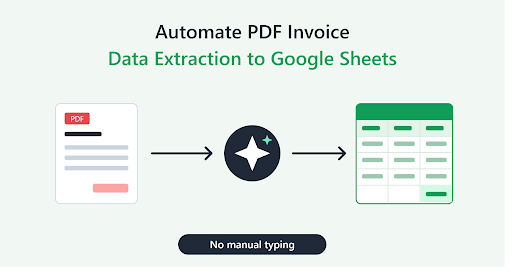
Managing invoices manually can consume valuable time, especially when a business receives dozens or hundreds of PDF invoices every month. Employees often need to open each document, identify important details, and copy information into a spreadsheet. This repetitive process can lead to typing mistakes, missing records, and unnecessary administrative work.
A smarter approach is to automate PDF invoice data extraction to Google Sheets. With the right combination of document processing tools, optical character recognition (OCR), and workflow automation, businesses can extract invoice information and organize it in a spreadsheet with minimal manual effort.
This approach is useful for small businesses, accountants, freelancers, finance departments, and e-commerce companies that want to simplify bookkeeping and improve financial record management.
In this guide, you will learn how invoice extraction automation works, which tools you can use, how to set up a workflow, and how to avoid common problems.
What Is PDF Invoice Data Extraction?
PDF invoice data extraction is the process of collecting important information from digital invoices and converting it into structured data.
A typical invoice contains several fields, including:
- Invoice number and invoice date
- Supplier or vendor name
- Customer details
- Subtotal and total amount
- Tax amount and currency
- Payment due date
- Purchase order number
- Product descriptions and quantities
When these details are extracted automatically, they can be stored in Google Sheets, accounting software, or a business database.
Why Use Google Sheets for Invoice Management?
Google Sheets is a practical option for organizing invoice records because it is accessible through a web browser, supports collaboration, and provides formulas for financial calculations.
Businesses can use it to track unpaid invoices, monitor supplier expenses, prepare monthly reports, and identify overdue payments.
However, copying invoice information manually into a spreadsheet becomes inefficient as the volume of documents increases. Automation helps transform Google Sheets from a simple record-keeping tool into part of a more efficient invoice management system.
How to Automate PDF Invoice Data Extraction to Google Sheets
An automated invoice processing workflow usually follows five steps: document collection, text extraction, data validation, spreadsheet entry, and error review.
Step 1: Collect PDF Invoices Automatically
The first step is to decide where invoices will come from.
Common sources include email attachments, Google Drive folders, accounting platforms, and supplier portals. For example, a company might create a dedicated Google Drive folder named “Incoming Invoices.”
Whenever a new PDF invoice arrives, an automation tool can detect the file and begin processing it.
Google Drive is particularly useful for teams that already use Google Workspace. It provides a central location for storing documents and makes it easier to maintain a consistent filing structure.
Step 2: Extract Information from PDF Documents
The next step is to identify and extract the relevant invoice fields.
There are several ways to accomplish this, depending on the type of PDF document.
Text-based PDF extraction: Some invoices contain selectable text. These documents can often be processed directly without OCR.
Optical character recognition: Scanned invoices are essentially images. OCR technology converts the text within these images into machine-readable information.
AI-powered invoice processing: AI document processing tools can identify fields such as invoice numbers, vendor names, dates, taxes, and totals, even when suppliers use different invoice layouts.
For example, one supplier might place the invoice number at the top right, while another places it beneath the company logo. An AI-powered extraction tool can identify the relevant field based on its context rather than relying entirely on a fixed position.
The best method depends on document quality, layout consistency, processing volume, and budget.
Step 3: Connect the Extraction Tool to Google Sheets
Once invoice details have been extracted, the information needs to reach the correct spreadsheet.
You can use workflow automation platforms such as Make, Zapier, or a custom Google Apps Script solution to connect the document processing stage with Google Sheets.
A typical workflow looks like this:
- A new PDF invoice is uploaded to Google Drive.
- An automation platform detects the new file.
- An OCR or invoice extraction service processes the document.
- Extracted fields are mapped to spreadsheet columns.
- A new row is added to Google Sheets.
- The workflow flags incomplete or suspicious records for review.
This eliminates the need to open every invoice and manually copy its details.
Step 4: Organize Invoice Data in Google Sheets
Create a spreadsheet with clearly defined columns before enabling automation.
A practical structure might include:
| Invoice Number | Supplier | Invoice Date | Due Date | Total Amount | Status |
| INV-1042 | ABC Supplies | 2026-10-02 | 2026-10-30 | 450.00 | Pending |
| INV-1043 | Bright Office | 2026-10-04 | 2026-11-03 | 275.50 | Paid |
These sample records illustrate how extracted information can be organized. Your actual spreadsheet should reflect the fields required by your business.
You can add columns for tax, currency, purchase order number, payment date, document link, and extraction confidence.
Use consistent date formats and numeric fields so that Google Sheets formulas, filters, and charts work correctly.
Step 5: Validate Extracted Information
Automation does not guarantee that every extracted value will be correct.
Poor-quality scans, unusual invoice layouts, handwritten notes, and ambiguous number formats can cause errors. For this reason, validation should be part of the workflow.
For example, you can compare the subtotal, tax, and total amount to identify discrepancies. You can also check whether the invoice number already exists in the spreadsheet.
If a required field is missing or the extraction service reports low confidence, send the invoice for manual review instead of automatically approving the record.
This combination of automation and human verification helps reduce errors without requiring employees to inspect every document.
Best Tools for Automating PDF Invoice Extraction
Choosing the right tool depends on your technical skills, invoice volume, and available budget.
Google Apps Script
Google Apps Script allows you to automate tasks within Google Workspace. It can read and write Google Sheets data, manage files through supported Google services, and connect to external APIs.
It is suitable for businesses that want greater control over their workflow without maintaining a separate server.
However, extracting information from complex or scanned PDFs may require an external OCR or document processing service.
Make
Make provides a visual workflow builder that connects different applications. You can use it to coordinate Google Drive, invoice extraction services, and Google Sheets.
It is useful for businesses that want to create automation without writing extensive code.
Zapier
Zapier connects supported applications through automated workflows called Zaps. Depending on the available integrations, you can use it to trigger invoice processing when a file arrives and send extracted information to a spreadsheet.
Check the capabilities, task limits, and pricing of the selected integrations before building your workflow.
AI-Powered Invoice Extraction Tools
Specialized document processing services can identify invoice fields and return structured information. Some support multiple layouts, line-item extraction, confidence scores, and validation rules.
Before selecting a service, confirm that it supports your PDF formats, currencies, document languages, and required integrations.
For businesses handling sensitive financial information, also review data retention, access controls, encryption, and vendor privacy policies.
Benefits of Automating Invoice Data Extraction
Saves Time on Repetitive Tasks
Manual invoice processing requires employees to open files, locate values, and enter data individually. Automation handles much of this repetitive work, allowing staff to focus on payment reconciliation, financial analysis, and supplier management.
Reduces Manual Data Entry Errors
Copying invoice values by hand can result in incorrect totals, missing digits, and inconsistent dates. Automated extraction reduces the amount of manual entry, while validation rules help catch mistakes before they affect financial reports.
Improves Invoice Tracking
When invoice details are collected in one spreadsheet, businesses can quickly filter records by supplier, payment status, due date, or invoice amount.
This makes it easier to identify overdue payments and understand spending patterns.
Supports Business Growth
A manual workflow that works for ten invoices per month may become difficult to manage when the volume increases to hundreds.
An automated process can handle growing workloads more efficiently, provided the tools have sufficient capacity and the workflow includes appropriate error handling.
Common Challenges and How to Solve Them
Scanned PDFs and Poor Image Quality
Low-resolution scans can make invoice numbers and totals difficult to recognize.
Use clear scans, test OCR performance on real documents, and require manual review when important fields cannot be identified reliably.
Different Invoice Formats
Suppliers rarely follow one universal invoice layout. A fixed-position extraction method may work for one supplier but fail for another.
Use layout-aware extraction or AI-based document processing when dealing with diverse invoice formats.
Duplicate Invoice Records
The same invoice might be uploaded more than once or received through multiple channels.
Create a duplicate detection rule using the supplier name, invoice number, and other relevant fields. Consider adding a unique record identifier to prevent accidental duplicate entries.
Incorrect Currency or Date Formats
An amount such as 1,250.50 can be interpreted differently depending on regional formatting. Dates may also use different conventions.
Normalize currency and date formats before storing values, and preserve the original invoice file for reference.
API and Workflow Failures
External services can occasionally fail, exceed usage limits, or return incomplete results.
Configure error notifications, retain processing logs, and allow failed documents to be retried without creating duplicate rows.
Best Practices for Reliable Invoice Automation
To build a dependable system, follow these recommendations:
- Start with a small batch of real invoices from different suppliers.
- Define the required spreadsheet columns before building the workflow.
- Test extraction accuracy for dates, invoice numbers, taxes, and totals.
- Validate important financial fields before updating official records.
- Keep a link to the original PDF for auditing and verification.
- Use duplicate detection to prevent repeated entries.
- Restrict spreadsheet access to authorized employees.
- Monitor failed workflows and review extraction errors regularly.
- Maintain backups and document your processing rules.
These practices help make invoice automation more reliable and easier to maintain over time.
Is It Possible to Automate Invoice Extraction Without Coding?
Yes. No-code platforms and AI invoice processing tools can automate much of the workflow without requiring programming skills.
A beginner-friendly setup might use Google Drive for invoice storage, a supported document extraction service to identify invoice fields, and Make or Zapier to send the results to Google Sheets.
Users with more technical experience can build a customized solution using Google Apps Script and an OCR or document processing API.
The important point is that a no-code solution still requires configuration, testing, and ongoing monitoring. You should not assume that a workflow will accurately process every invoice immediately after setup.
Conclusion
Automating PDF invoice data extraction to Google Sheets can help businesses reduce repetitive data entry, organize financial records, and improve invoice tracking. By combining document collection, OCR or AI-powered extraction, spreadsheet integration, and data validation, you can build a workflow that processes invoices more efficiently.
Start with a clearly structured spreadsheet and a small set of sample invoices. Test the extraction results, establish duplicate detection, and add human review for uncertain values before processing documents at scale.
With the right workflow, Google Sheets can become a useful component of a more organized and scalable invoice management process.
The goal is not simply to move invoice data into a spreadsheet. It is to create a reliable process that saves time while keeping financial records accurate, accessible, and easy to review.