Connectivity Issues HSSGamepad: Fix Pairing, Lag and Dropouts
Fix HSSGamepad Bluetooth pairing, random disconnects, USB detection, input lag and connected-but-not-working problems with simple checks for Windows, Android, iPhone and games.

Introduction
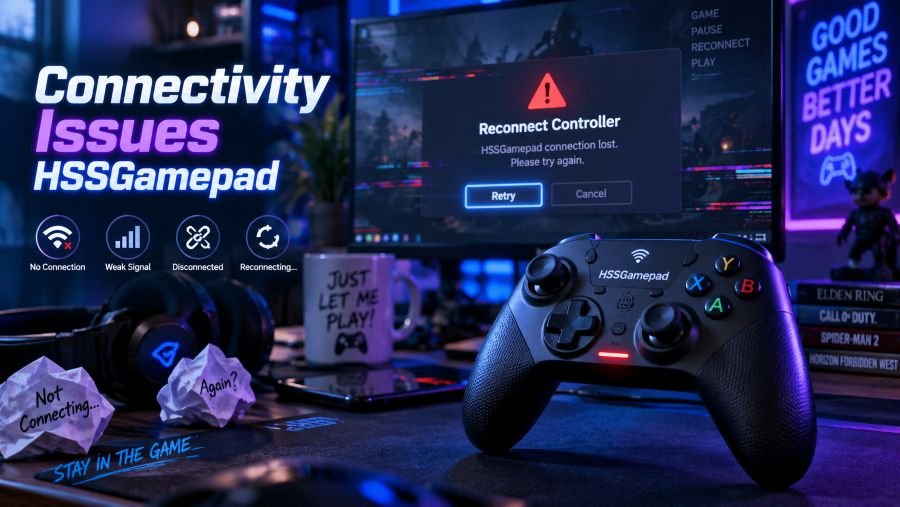
Connectivity Issues HSSGamepad can appear in several ways. Maybe the controller will not pair. Maybe it connects, then drops out. Sometimes Windows sees it, but the game does nothing.
That makes troubleshooting confusing.
The smart way is simple. Find where the connection fails first. Then test that part instead of changing random settings.
Short Answer: How Do You Fix Connectivity Issues HSSGamepad?
Start by fully charging the controller, restarting both devices and pairing it again using the instructions for your exact model. If it connects but does not work in a game, check controller support, Steam Input or Windows input compatibility. For repeated disconnects, check Bluetooth interference, drivers and Windows power-saving settings.
Quick Facts
| Point | Answer |
|---|---|
| Main problem | Controller connection or input failure |
| Common symptoms | No pairing, disconnects, lag, USB failure, no game input |
| Best first check | Charge and restart both devices |
| Bluetooth fix | Forget the controller and pair again |
| Windows checks | Bluetooth, drivers, updates and power settings |
| Game check | Confirm controller support |
| Wired check | Use a known-good USB data cable |
| Hardware warning | Same failure across several compatible devices |
| Firmware advice | Use only verified model-specific firmware |
| Best testing method | Change one thing, then test |
Quick Fix: Try These 5 Checks First
Do these before anything complicated.
1. Fully charge the controller.
Low power can cause unstable wireless behaviour.
2. Restart both devices.
Turn the controller off. Restart the PC, phone or tablet.
3. Remove the saved Bluetooth connection.
Forget the controller, then pair it again.
4. Test another game or app.
This tells you whether the connection or the game is causing trouble.
5. Try wired mode if supported.
Use a proper USB data cable.
Still broken? Keep reading.
HSSGamepad Problem: Symptom, Cause and Fix
| Symptom | Possible cause | First fix to try |
|---|---|---|
| Controller not showing | Pairing mode, power or Bluetooth issue | Charge it and restart pairing |
| Pairing keeps failing | Old saved connection | Forget device and pair again |
| Random disconnects | Power saving, interference or driver | Check Windows Bluetooth settings |
| Connected but no buttons work | Game/input compatibility | Test another controller-supported game |
| Heavy input lag | Wireless interference or host/game lag | Compare wireless and wired play |
| USB not detected | Cable, port or USB data problem | Try another data cable and port |
| Works on one device only | Host or game compatibility | Check the failing device |
| Fails everywhere | Possible controller fault | Test multiple compatible hosts |
What Are Connectivity Issues HSSGamepad?
This search phrase covers problems where an HSSGamepad-labelled controller cannot establish or keep a usable connection with another device.
The problem can happen before pairing.
It can happen later too.
Typical signs include:
- the controller never appears in Bluetooth;
- the controller appears but will not pair;
- it disconnects during gameplay;
- button presses stop working;
- controls feel delayed;
- Windows detects it but a game does not;
- USB does not recognise the controller;
- the controller works on one device but not another.
These faults have different causes.
That is the key point.
What Causes Connectivity Issues HSSGamepad?
Several things can cause connection trouble.
A low battery is one possibility. So is an incorrect pairing mode. Windows Bluetooth drivers, wireless interference, USB cables, game support and controller input standards can also matter.
Sometimes the controller is fine.
The game simply cannot read it.
Microsoft’s Bluetooth troubleshooting guidance covers common causes such as range, power, pairing problems, drivers, Windows services and system settings.
That makes the host device worth checking before blaming the gamepad.
Check Your Exact HSSGamepad Model First
Do this early.
There is no clearly verified universal manual covering every controller described online with the HSSGamepad name.
That creates a problem.
Different websites give different button combinations, reset methods, firmware numbers and hardware claims. Some mention one Bluetooth version. Others give another.
Do not guess.
Use the manual, packaging or verified seller information supplied with your exact controller.
That matters most for:
- pairing button combinations;
- reset methods;
- wireless modes;
- USB support;
- 2.4 GHz receivers;
- firmware updates;
- device compatibility.
One random tutorial may describe a different controller.
Why Is HSSGamepad Not Showing in Bluetooth?
Start with power.
Charge the controller. Then confirm that Bluetooth is turned on at the host device.
Next, put the gamepad into its documented pairing mode.
Do not assume the pairing buttons.
Different controllers can use different combinations.
Then try this:
- Move the controller closer.
- Turn Bluetooth off.
- Wait a few seconds.
- Turn Bluetooth back on.
- Restart the controller.
- Scan for nearby devices again.
Microsoft recommends similar checks for Windows Bluetooth accessories. Google also recommends restarting Bluetooth and re-pairing accessories on Android.
If the controller still never appears, test another compatible host.
That test tells you plenty.
Why Does HSSGamepad Appear but Refuse to Pair?
Old Bluetooth records can cause trouble.
Remove the saved controller first.
On Windows 11, open:
Settings → Bluetooth & devices
Find the controller. Remove it. Then use Add device and pair it again.
On Android, open the Bluetooth or Connected Devices menu. Forget the old entry, then pair again.
On iPhone or iPad, use Forget This Device where available and reconnect using the controller’s proper discovery mode.
Pretty basic. Often effective.
Why Does HSSGamepad Keep Disconnecting?
Repeated disconnects can point to power, Bluetooth settings, interference or drivers.
For Windows users, check these first:
- controller battery level;
- Windows Energy Saver;
- Bluetooth adapter power management;
- Bluetooth driver updates;
- Bluetooth Support Service;
- distance from the computer.
Microsoft notes that Bluetooth power-saving behaviour and outdated drivers can contribute to repeated disconnections.
Test one setting at a time.
That keeps things clear.
Can Wireless Interference Cause HSSGamepad Problems?
Yes.
Bluetooth works in crowded wireless spectrum. Nearby wireless devices can sometimes affect stability.
Move closer to the host.
Temporarily disconnect Bluetooth accessories you do not need. Then test again.
There is another useful Windows check.
Microsoft says some unshielded USB devices plugged into USB 3.0 ports can interfere with nearby Bluetooth connections.
Using a Bluetooth receiver?
Try moving it away from USB 3.0 hardware.
Small change. Useful test.
Why Is HSSGamepad Connected but Not Working?
This often is not a Bluetooth problem.
Your computer may successfully connect to the controller while the game fails to understand its inputs.
Test another game first.
Pick one that clearly supports controllers.
If that works, the gamepad connection itself is probably okay. The first game’s controller support or configuration becomes the stronger suspect.
Steam users should also check Steam Input.
Valve documents support for major controller types and DirectInput gamepads through Steam Input.
What Are XInput and DirectInput?
These are Windows controller input systems.
Microsoft documents differences between XInput and DirectInput. Games can handle them differently.
That means one controller may work perfectly in one game and behave strangely in another.
Possible symptoms include:
- buttons mapped incorrectly;
- triggers behaving differently;
- vibration not working;
- controller ignored by a game;
- partial input support.
Do not assume every HSSGamepad contains a physical XInput or DirectInput switch.
Check your exact model first.
Why Is HSSGamepad Not Working Through USB?
Start with the cable.
Some USB cables only provide power. They charge devices but cannot send usable controller data.
Use a known-good data cable.
Then:
- Try another USB port.
- Restart the computer.
- Reconnect the gamepad.
- Test another compatible computer.
- Check whether your exact model supports wired data.
Watch what happens.
What Does the Test Result Mean?
Bluetooth fails but USB works:
Focus on wireless pairing, interference or Bluetooth settings.
Bluetooth works but USB fails:
Check the cable, port and wired-mode support.
Both fail on one PC:
Windows settings, drivers or compatibility may be involved.
Both fail on several compatible devices:
A controller hardware problem becomes more likely.
Why Is HSSGamepad Lagging?
First, compare wired and wireless play.
Use the same game.
Keep the settings similar.
If the delay appears only through Bluetooth, reduce distance and nearby wireless traffic.
If the lag remains through USB, the problem may involve the game, frame rate, system performance or controller input handling.
Do not blame Bluetooth automatically.
Test it.
How Do You Fix HSSGamepad on Windows 11?
Use this order:
- Charge the controller.
- Restart Windows.
- Remove the old Bluetooth pairing.
- Pair the controller again.
- Run Windows Bluetooth troubleshooting.
- Check Windows Update.
- Check the Bluetooth driver.
- Test without Energy Saver.
- Check Bluetooth adapter power settings.
- Test another controller-supported game.
- Check Steam Input if relevant.
- Try USB if the model supports it.
Microsoft’s Windows Bluetooth support documentation backs many of these host-side checks.
How Do You Fix HSSGamepad on Android?
Start inside the phone’s Bluetooth settings.
Turn Bluetooth off and back on.
Restart the phone too.
Then remove the saved controller and pair it again.
Google recommends similar checks for Bluetooth accessories that refuse to connect.
Once paired, test a game that clearly supports controllers.
If one game works and another does not, the problem may sit inside the game rather than Bluetooth.
Android menus vary.
Samsung, Google Pixel, Xiaomi and other phones may use different menu names.
How Do You Fix HSSGamepad on iPhone or iPad?
Apple supports compatible game controllers on iPhone and iPad.
Compatibility still matters.
Put the controller into the discovery mode listed in its own instructions. Then open:
Settings → Bluetooth
Select the controller when it appears.
If a saved connection stops working, forget the device and pair it again.
Then test a game that clearly states controller support.
A Bluetooth connection alone does not guarantee every iPhone game will use the controller.
Should You Update HSSGamepad Firmware?
Only from a verified source.
This point matters.
Several third-party pages publish firmware numbers and update instructions for HSSGamepad-labelled products. Those claims should not be treated as universal.
Never install random firmware.
Use firmware only when you can confirm:
- the exact controller model;
- the verified maker or seller;
- the correct firmware file;
- the correct update instructions.
The wrong firmware can make matters worse.
Does Every HSSGamepad Use a 2.4 GHz Dongle?
No universal claim can be made.
Some controllers discussed under the HSSGamepad wording may include a dedicated wireless receiver. That does not mean every model has one.
Check the box.
Check the manual.
Check the exact product listing.
If your controller shipped with a receiver, follow the instructions supplied for that receiver.
An unrelated USB dongle may not work.
When Could HSSGamepad Have a Hardware Problem?
Hardware becomes more likely after several tests fail.
Watch for these signs:
- the controller fails on several compatible devices;
- multiple known-good cables fail;
- Bluetooth and wired modes both fail;
- the USB socket feels loose;
- the controller shuts off unexpectedly;
- charging behaves strangely;
- the problem started after impact or liquid exposure.
At that stage, repeating Bluetooth resets may not help.
Check the seller or maker warranty instead.
Best Troubleshooting Order
Keep the process clean.
- Identify the exact controller.
- Fully charge it.
- Restart both devices.
- Use the correct pairing mode.
- Remove the old Bluetooth entry.
- Pair it again.
- Test at close range.
- Reduce wireless interference.
- Check Windows Bluetooth settings.
- Test another supported game.
- Check Steam Input where relevant.
- Test a USB data cable.
- Try another compatible device.
- Check hardware only after those tests.
This order saves time.
It also helps isolate the fault.
What Should You Avoid?
Avoid random fixes.
Do not install unknown firmware.
Do not assume every HSSGamepad uses the same reset command.
Do not copy battery specifications from an unrelated controller.
Do not assume every model supports Bluetooth, USB and a 2.4 GHz receiver at the same time.
Do not declare the controller broken because one game ignores it.
And do not keep reinstalling software if the device fails across several separate hosts.
Final Thought
Connectivity Issues HSSGamepad can start at several points: the controller, Bluetooth connection, USB link, operating system or game.
Find the failing point first.
If pairing fails, work on Bluetooth.
If pairing succeeds but buttons do nothing, check game support and input handling.
If USB works while Bluetooth fails, focus on the wireless side.
If the controller fails everywhere, hardware becomes a stronger possibility.
Simple tests work best.
Change one thing. Test again.
Frequently Asked Questions
How do I fix Connectivity Issues HSSGamepad quickly?
Charge the controller, restart both devices, remove the old Bluetooth pairing and connect it again using the instructions for the exact controller model.
Why is my HSSGamepad not connecting?
The controller may have low power, incorrect pairing mode, an old saved Bluetooth connection or a host-side Bluetooth problem. Start with charging and re-pairing.
Why does HSSGamepad keep disconnecting?
Battery level, wireless interference, Windows power saving or Bluetooth drivers can cause repeated drops. Test each area separately.
Why is HSSGamepad connected but not working in games?
The game may not support the controller or its input method. Test another controller-supported game and check Steam Input on PC.
How do I reset HSSGamepad Bluetooth?
Forget the controller from Bluetooth settings, restart Bluetooth and pair it again. Use the exact model’s manual for any physical reset command.
Does HSSGamepad work with Android?
Some models may work with Android if the controller and game support compatible controller input. Check the exact model before assuming support.
Can HSSGamepad work with iPhone?
Compatible controllers can work with iPhone and iPad, but controller and game support both matter. Follow the model’s pairing instructions.
Why does my HSSGamepad have input lag?
Wireless interference, distance, game performance or controller input handling can cause delay. Compare Bluetooth with wired play if the model supports USB data.
Why does my HSSGamepad charge but not work through USB?
The cable may be charge-only. Try a known-good USB data cable and confirm that the controller supports wired data.
Should I install HSSGamepad firmware from another website?
No. Use firmware only from a verified support source for your exact controller model.